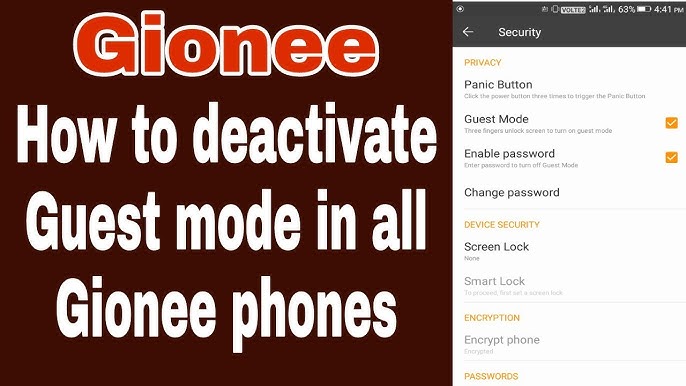
You picked up your Gionee phone and nothing looks right. Your apps are missing. Your WhatsApp is not loading. Your wallpaper has changed. You tap around and realize the phone is stuck in guest mode, either because someone else used it or because you accidentally switched profiles without knowing it. Now you just want your phone back to normal and you have no idea where to start.
This guide walks you through every method to turn off guest mode on a Gionee phone, from the quickest one-tap fix to what you do when you are completely locked out. Whether you remember the password or not, there is a solution here for you.
What Is Guest Mode on a Gionee Phone?
Before jumping into the fix, it is worth understanding what guest mode actually does so you know what you are working with.
Guest mode creates a separate, limited user profile. In this state, your personal apps, messages, photos, and accounts are hidden. The guest cannot install apps, change system settings, or access your private data. Any changes made by the guest are erased once they log out.
It is a useful feature when you want to hand your phone to someone temporarily without giving them access to your private life. The problem is that many people switch into guest mode accidentally or forget that they handed their phone to someone who left it in guest mode. When you pick it up again, everything looks unfamiliar and confusing.
Guest mode is perfect for maintaining privacy while allowing someone else to use your phone. It restricts access to your apps and data. If you have sensitive information or apps, guest mode is an additional layer of security. It can also be handy if you are giving your phone to a child to play games or watch videos.
All of that is fine when it is intentional. When it is not, here is how to get out.
Method 1: Use the Notification Panel (Quickest Method)
This is the fastest route and works on most Gionee models running Android 5.0 and above.
Swipe down from the top of the screen to open the notification panel. Look for your user profile icon in the top-right corner. It usually appears as a silhouette or circular avatar. Tap the profile icon. A menu will appear showing available user profiles. Select your main user account, typically labeled with your name or “Owner.” The phone will reload and return to your primary interface with full access.
If the profile icon is not immediately visible, pull the notification shade all the way down to fully expand it. On some Gionee models, you may need to tap “Users” or “Switch user” directly from the quick settings panel.
Once you tap your main account and confirm the switch, the phone will briefly reload and you will be back to your normal home screen with full access to your apps, messages, and settings.
Method 2: Exit Guest Mode Through Settings
If the notification panel method does not show you a profile icon or does not work on your specific Gionee model, go directly through the Settings app.
Step 1: Open the Settings app on your Gionee phone.
Step 2: Scroll down and look for “Users and Accounts,” “Multiple Users,” or simply “Users” depending on your model.
Scroll down and select Users and accounts or Multiple users, as this varies by model.
Step 3: You will see a list of user profiles including “Guest.” Tap on your main owner account.
Step 4: Confirm the switch when prompted. The phone will restart its interface and load your main account.
Once you are back on your main account, you can also choose to disable the guest option entirely from this same menu so it does not happen again. Confirm your choice and the guest option will no longer appear in the notification panel.
Method 3: Turn Off Guest Mode Through Security Settings (Gionee-Specific)
Some older Gionee models, particularly those with custom Android skins, place the guest mode toggle inside the Security settings rather than the Users menu. If your Gionee does not show a standard “Multiple Users” option, try this path:
Step 1: Open Settings on your Gionee phone.
Step 2: Tap on “Security” or “Security and Privacy.”
Step 3: Look for an option labeled “Guest Mode” within the security menu.
Step 4: Once you find it, deselect or untick the guest mode option to disable it.
This is the path used on several older Gionee models and is particularly relevant for users running earlier Android builds where the guest mode was managed differently from standard Android.
Method 4: What to Do If You Are Locked Out With a Password You Don’t Know
This is where things get more complicated. Some Gionee phones allow users to set a specific password for guest mode that is separate from the main screen lock. If someone set a guest mode password and you do not know it, you have a couple of options.
Try the security question method:
Go to your phone settings, then security settings, then guest mode. On the space provided to enter your password, leave it empty and double click directly below the blinking cursor. You should see your phone’s security question. Give the correct answer and you will automatically exit guest mode.
This method was confirmed by multiple Gionee users and works specifically on models like the Gionee P5W and similar devices that have a security question linked to the guest mode password.
Try entering the wrong password multiple times:
On some Gionee models, repeatedly entering the wrong password will eventually trigger a “Forgot password” option or a reset prompt. Follow the on-screen instructions when that prompt appears to reset the guest mode password and regain access.
Leave the password field blank and tap confirm:
Some users have reported that on certain Gionee firmware versions, leaving the password field completely empty and pressing confirm will exit guest mode without requiring a password at all, particularly if no password was formally set.
Method 5: Factory Reset (Last Resort)
If none of the above methods work and you are completely locked out of your Gionee phone in guest mode with no way to access settings or switch users, a factory reset will restore the phone to its original state. Be aware that this will erase all data on the device.
To go to recovery, press and hold the power button and volume up button simultaneously for 15 to 20 seconds. A menu will appear. There should be an option saying “Wipe Data.” Scroll through the list using volume buttons as up and down, and press the power button to select the option. Your phone will boot up as new.
This is the nuclear option. Only use it if you have tried everything else and you need to regain access to the device. If the phone belongs to you, you can restore your apps and data afterward through your Google account backup.
How to Permanently Disable Guest Mode on Gionee
If you want to make sure guest mode can never be accidentally activated again, here is how to disable it entirely after you have exited it.
Step 1: Once you are back in your main owner account, open Settings.
Step 2: Navigate to “Multiple Users” or “Users and Accounts” depending on your model.
Step 3: Tap on the “Guest” profile.
Step 4: Select “Remove Guest” or look for an option to delete the guest profile.
Step 5: Confirm when prompted.
Note that some older Gionee models may not have a direct toggle to disable guest mode. In such cases, simply avoid switching to the guest profile and ensure your main account is always active.
On models where you cannot fully delete the guest profile, the practical alternative is to set a main screen lock (PIN or password) that keeps unauthorized users from switching profiles in the first place.
Why You Keep Getting Stuck in Guest Mode
If this has happened more than once, it is worth understanding why.
Many users unknowingly leave guest mode active after lending their phone. A quick reboot and user check should resolve 90% of access issues.
The guest mode profile sits in the same notification panel as other quick settings, and it is surprisingly easy to accidentally tap the user icon and switch profiles without intending to. If you share your phone frequently with family members, consider removing the guest profile entirely or at least adding a password to the main account so that any profile switch requires your authorization.
What to Do After Exiting Guest Mode
Once you are back in your main account, a few quick checks will confirm everything is back to normal.
Restart your phone. Restarting your phone after switching users ensures all background processes reset correctly and prevents lingering guest session issues.
Check that your apps are loading. Open WhatsApp, your gallery, and a few key apps to confirm you are fully back in your main account and everything is syncing properly.
Verify your notification panel. Check that your profile icon in the notification panel now shows your main account rather than the guest icon.
Delete the guest profile if you do not need it. If you never use guest mode intentionally, remove it from your Users settings so it cannot be accidentally activated again.
Summary: Quick Reference for Turning Off Guest Mode on Gionee
| Situation | Best Method |
|---|---|
| Know your main account, can see profile icon | Notification panel switch |
| Profile icon not visible | Settings → Users → Switch to Owner |
| On older Gionee with security menu | Settings → Security → Guest Mode → Disable |
| Forgot guest mode password | Try security question method or empty password field |
| Completely locked out | Factory reset via recovery mode |
| Want to prevent it happening again | Delete guest profile from Users settings |
Conclusion
Turning off guest mode on a Gionee phone is straightforward once you know where to look. The quickest way is always through the notification panel profile icon, but if that is not available on your model, the Settings path through Users or Security will get you there. For those dealing with a forgotten password, the security question workaround has helped many Gionee users avoid the need for a full factory reset.
The key thing to remember with guest mode on Gionee and other Android devices is this: guest mode hides your data, it does not delete it. The moment you switch back to your main account, everything is exactly where you left it. You have not lost anything. You just need to get back into the right profile, and this guide has given you every way to do exactly that.
FAQs: Turning Off Guest Mode on Gionee
Why is my Gionee phone in guest mode and I cannot get out? This usually happens when someone accidentally switched profiles through the notification panel, or when a guest mode password was set and is now forgotten. Use the notification panel icon to switch back, or go through Settings → Users to select your main account.
How do I turn off guest mode on Gionee without a password? If you do not know the guest mode password, try going to Settings → Security → Guest Mode, leave the password field empty, and double-tap below the cursor. Your security question should appear. Answer it correctly to exit guest mode without the password.
Will I lose my data if I exit guest mode? No. Your personal data, apps, photos, and messages are completely intact in your main user profile. Guest mode only hides them temporarily. Switching back to your main account restores everything immediately.
Can I permanently remove guest mode from my Gionee phone? On most Gionee models you can go to Settings → Users, tap the Guest profile, and select “Remove Guest” to delete it. On older models where this option is not available, the guest profile cannot be fully deleted but can be ignored as long as your main account is always active.
What if none of the methods work and I am still stuck in guest mode? The last resort is a factory reset through recovery mode, accessed by holding the power button and volume up button simultaneously for 15 to 20 seconds. This will erase all data on the device and restore it to factory settings. Consider contacting Gionee customer support before taking this step if you have important data on the device.
Does restarting a Gionee phone exit guest mode automatically? Not always. On some models a restart will return to the last active profile, which could still be guest. Always switch profiles manually through the notification panel or Settings before restarting to ensure you return to your main account.
